Showing posts with label Gmail setup. Show all posts
How to set up gmail account on iphone ? - The iPhone is a fantastic phone, but if you're a heavy user of Google services, it can be a little confusing to set up your Gmail, Google Calendar, and Google Contacts to sync with iOS. The default method's no good. Here's the better way to do it.
You can get all your Google services syncing (complete with push sync—that is, messages push to your phone as soon as you receive them) with iOS by setting up just one account. The trick is to choose Microsoft Exchange at the prompt instead of Gmail. This will give you access not only to your Gmail, but your calendars and contacts, and they will all sync directly to your phone—when you add a contact in Gmail or edit an event on Google Calendar, you'll see it show up on your phone without having to sync anything.
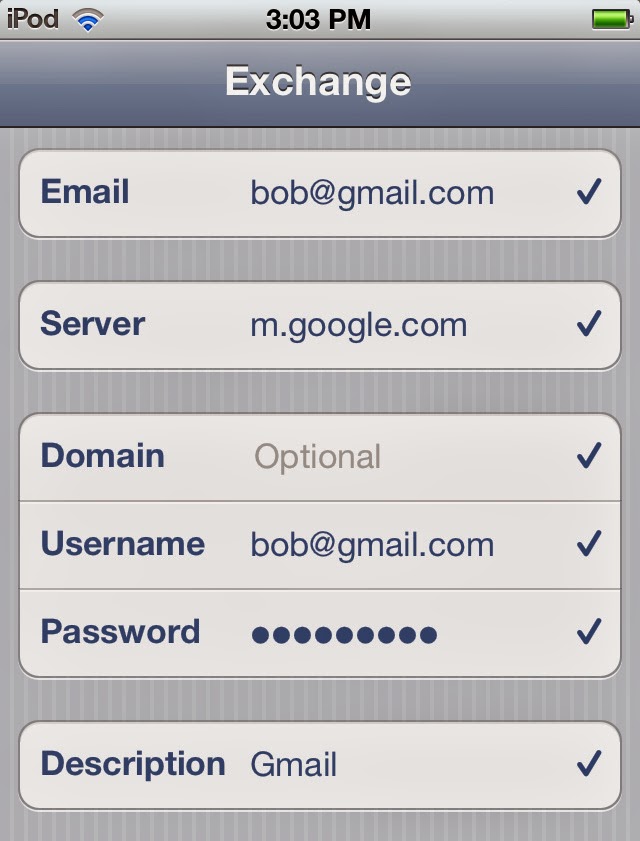
  1. Open up the Settings app on your iOS device and go to the "Mail, Contacts, Calendars" section. Hit "Add Account".
  2. From there, choose Microsoft Exchange as the type of account (again, don't choose Gmail).
  3. Type in your Gmail address under Email. Leave the Domain field blank and enter your full Gmail address under Username (including the @gmail.com, @googlemail.com, or other suffix). Type in your password and give it any description you like. Mine's just called "Gmail".
  4. Press the Next button at the top of the screen. It should pop up a message saying Unable to Verify Certificate—if it does, just hit cancel. Then, type m.google.com in the new "Server" box that shows up at the top of the screen. Then tap Next.
From there, you should be all set. You can turn on Mail, Contact, and Calendar syncing from the account settings page that shows up. Note that pressing the trash can icon in the Mail app will archive a message, not delete it completely. If you want to delete it, you can hit the folder icon and choose Trash from the menu to move it to the trash.

Good luck! - gmailuserguide.blogspot.com
Block sender in gmail - Block sender gmail - While you can't currently block messages from specific addresses or domains in Gmail, you can set up filters to send those unwanted messages directly to the Trash, never to be seen. Follow these easy steps to banish all unwanted mail.
 
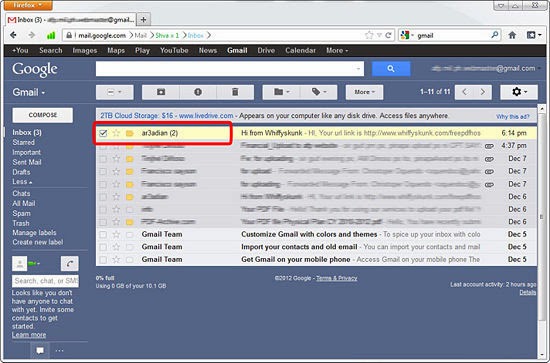
Steps 01: Open Gmail. Determine which sender you no longer wish to receive messages from.
Steps 02: Click the triangle on the right-hand side of the search bar at the top of the screen. A window will appear. Ensure “All mail” is selected in the Search drop-down at the top left of the window.

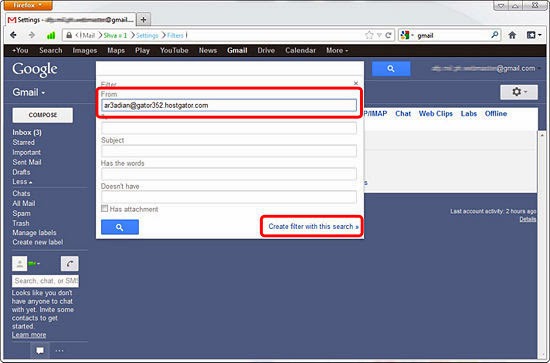
Steps 03: Enter in the criteria for your search. In the From space, type in the email address of the sender you’d like to filter.
To be sure the search worked properly, click the blue search button at the bottom left of the window. Re-click the down arrow in the search bar to return to the search window. 

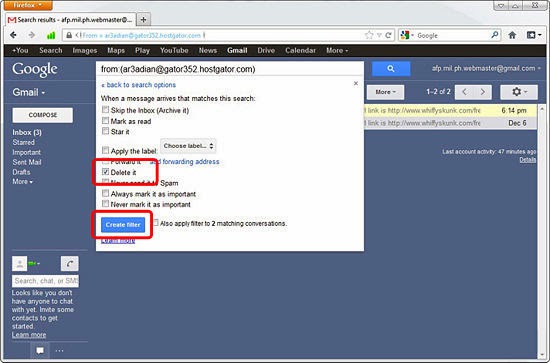
Steps 04: Click the “Create filter with this search” hyperlink at the bottom right of the search window. A new window will appear containing a number of possible actions to be applied to your search criteria.

Steps 05: Select “Delete it” by clicking the checkbox to the right. All messages received from this sender will automatically be sent to the Trash.

Good luck! - gmailuserguide.blogspot.com
Backup gmail account - A lot of information sent over email these days can be very important, such as account and password information, bank statements, university grades, business reports, and general correspondence among friends and family. It's always possible, though, that any data you store on the Internet could get wiped out. On February 28, 2011, Google confirmed that many Gmail users had temporarily lost access to their emails.[1] If you're worried about ever losing your emails to a similar glitch, it's probably a good idea to regularly backup your Gmail account. By configuring an email client on your computer, you can download your emails onto your hard drive by following these steps.
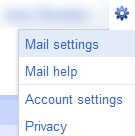
Steps 01: Log into Gmail and click on "Mail Settings" in the top right hand corner. This can be accessed from any Gmail page.
Log into Gmail and click on "Mail Settings" in the top right hand corner.
 
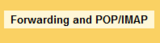
Steps 02: Locate and click on the "Forwarding and POP/IMAP" tab.
Locate and click on the "Forwarding and POP/IMAP" tab.

Steps 03: Look under "POP Download". Select the first option, "Enable POP for all mail (even mail that's already been downloaded)".
 

Steps 04: Click on "Save Changes" at the bottom.

Steps 05: Configure your mail client following the steps below. Once your mail client is configured to download your email, remember to open it periodically to backup.

Good luck! - gmailuserguide.blogspot.com
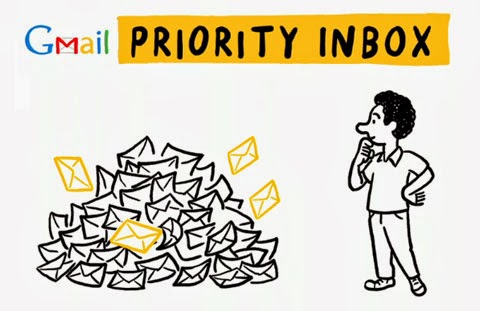
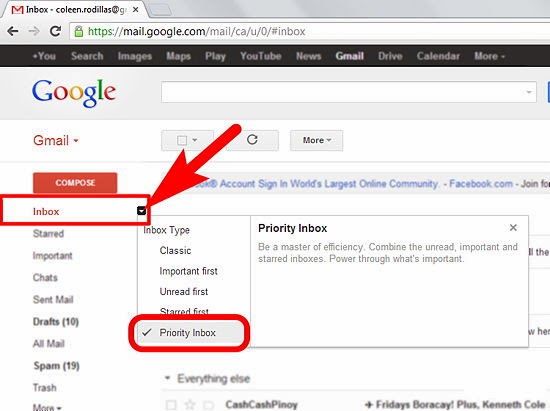
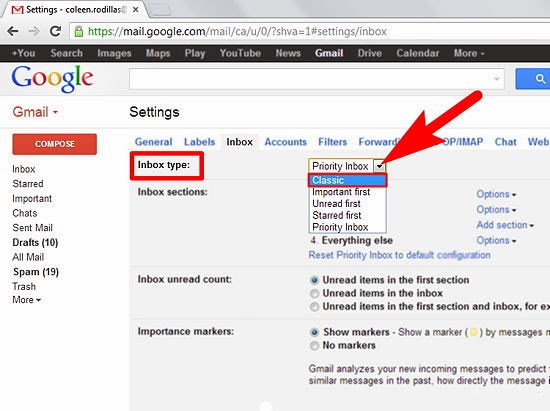
Gmail priority inbox - Priority Inbox is a new feature in Gmail that finds the messages of importance and sorts them for you, to prevent email overload. It does this by basing the importance on the emails you read and reply to. Here is how to start using it in your Gmail account.
Steps 01: Hover your cursor over Inbox in the menu found on the left side of your Gmail screen. Click on the side arrow and select Priority Inbox.

Steps 02: Wait while Gmail activates Priority Inbox. This shouldn't take long.
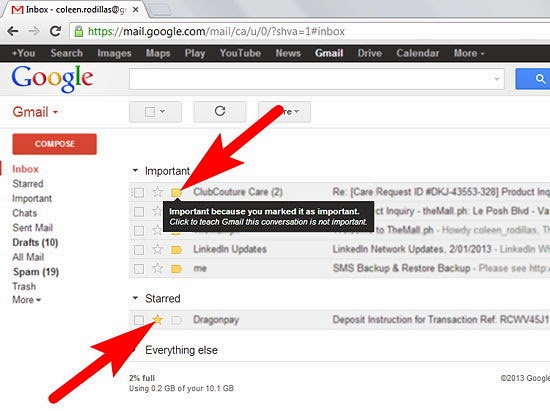
  • You will now see that your inbox looks a little different: 
  1. Important and unread are now listed first.
  2. Starred items are now brought into line as the next priority.
  3. All other emails are listed after the starred emails.
  • If you don't want to see the actual emails, you can collapse each set of headers using the tiny black arrows located in each header. The end result will appear very neat.
Steps 03: Train your Priority Inbox. You can rectify mistakes Gmail makes in highlighting or demoting the importance of your emails by pressing the tabs and stars at the start of each email line that represent increasing or lowering the email's importance. In this way the Priority Inbox quickly learns your preferences.
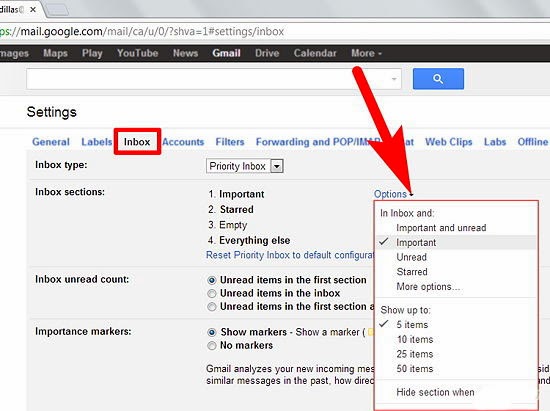
Steps 04: Customize the Priority Inbox. You can customize the Priority Inbox as follows:
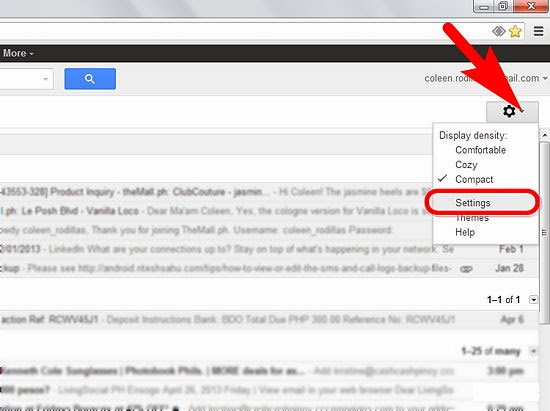
Click on the headers, or go to "Settings". A drop-down menu will appear allowing you to add or change a number of things, including labels, importance status, number of emails shown, hiding when empty, removal of the section and other options.

Steps 05: Change back to the ways things used to be. If you discover that you don't like using Priority Inbox, simply change it back. Do this by selecting the old inbox type in Settings.
Good luck! - gmailuserguide.blogspot.com
Gmail canned response setup - If you need to send similar email responses out to a number of people, consider using a Google Lab feature called "Canned Responses." This feature allows you to save an email as a canned response and use it over and over again without needing to copy and paste into a new window.
Steps 01: Enable Canned Responses
  1. Click on the gear icon in the upper right corner of your Gmail.
  2. Go to "Settings."
  3. Click on the "Labs" tab.
  4. Go to "Search for a lab," and type Canned Responses in the search bar.
  5. Press the button for "Enable."
  6. Press "Save Changes."
     

Steps 02: Create a Canned Response
  1. Click on "Compose." This button is near the top of the left-hand bar in your Gmail window.
  2. Create a response. To do this, either write the email you want to have as a canned response or copy and paste from a previous thread.
  3. Under the Subject heading of the email, click "Canned responses" in blue text.
  4. Click "New canned response." It will be under the "Save" heading in the drop-down menu.
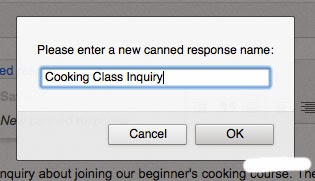
  5. Name your response. Call it something that will help you remember when to use your canned response, such as "email invitation" or "thank you for coming."
Steps 02: Use a Canned Response
  1. Click on "Compose." This button is near the top of the left-hand bar in your Gmail window.
  2. Click on "Canned responses."
  3. Click on the name of the response you'd like to use. Your saved responses are located under the "Insert" heading.
  4. Change any information in the canned response that needs to be modified.
  5. Send your canned response out.
Good luck! - gmailuserguide.blogspot.com
Copyright © 2013 Gmail User Guide - Proudly powered by Blogger.